Online Analysis Tab
Features:
Keyboard Shortcuts
Shortcut |
Description |
|
Starts the Add ROI tool for drawing a new integration ROI |
|
Save the Integration ROI Group to a file |
|
Load the Integration ROI Group from a file |
Integration Scanfields Panel
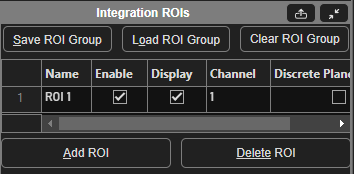
Depending on the selection of ROI(s) from the Integration ROIs panel, the columns of the table can indicate one of two things:
If the selection in the Integration ROIs panel’s table is of a single ROI, then each column is gives the details of individual scanfields making up that ROI.
If the selection in the Integration ROIs panel’s table is of multiple ROIs, then each column is a scanfield of the selected ROIs at the current Z of the selected viewport. If a scanfield is not defined or interpolated at the current Z, then it will display NaNs for properties. A scanfield can be added at that Z by clicking the
Add Scanfield at Zbutton.
Table Row |
Description |
Z |
If a single ROI is selected from the Integration ROIs table, then this is the depth of the particular scanfield. If multiple ROIs are selected from the Integration ROIs table, then this is the current Z of the viewport and the scanfield displayed either is defined at that current Z, is interpolated from defined scanfields, or lies outside the bounds of defined scanfields. |
Center X |
X-component of scanfield position in optical degrees |
Center Y |
Y-component of scanfield position in optical degrees |
Width |
Width of the integration scanfield in optical degrees |
Height |
Height of the integration scanfield in optical degrees |
Rotation [°] |
The rotation of the integration scanfield in degrees |
Integration ROIs Panel
Column |
Description |
Name |
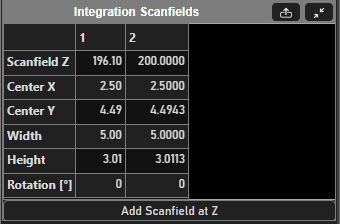
Integration ROI’s Name |
Enable |
Whether or not to integrate pixel data for the integration ROI |
Display |
Whether to display the integrated pixel data for the integration ROI in the Viewport or ROI Integration Auxiliary Panel |
Channel |
Which channel’s pixel data to use for the integration |
Discrete Plane Mode |
Whether or not to allow interpolation of scanfields by depth. When this is enabled, integration for this ROI occurs only if the planned acquisition has a slice coincident with one of the ROI’s scanfields. |
Integration Output
Element |
Description |
||||||||
Output device |
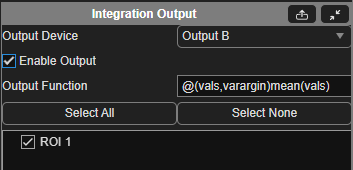
Selection of the configured ROI Output devices to configure with the below controls |
||||||||
Enable Output |
Whether to use the selected output device to process integration data |
||||||||
Output function |
Write an anonymous function to process the integration data. Function takes an input argument of a vector of averaged pixel values of length equal to the number of checked integration ROIs.
|
||||||||
Select All |
Checks all listed ROIs for feeding into the Output function |
||||||||
Select None |
Deselects all listed ROIs so that none are fed into the output function |
||||||||
ROI Table |
Lists Integration ROIs whose integrated pixel values can be fed into the output function. Placing a check in the box next to the ROI means that its integrated pixel values will be fed into the output function. |