Power Box Tab
The Power Box Tab is where precise control over the beam power throughout the sample space or ROI space can be configured through a fast beam modulator. See Related Documentation for more details.
- Related Documentation:
Keyboard Shortcuts
Shortcut |
Description |
|
Toggles AddSamplePowerBoxTool on and off |
|
Adds a new Scanfield Power Box |
|
Save a group of power boxes to a file |
|
load a group of power boxes from a file |
|
Deletes a power box when power box is selected (can also delete multiple power boxes at once if selected) |
Power Boxes Gui
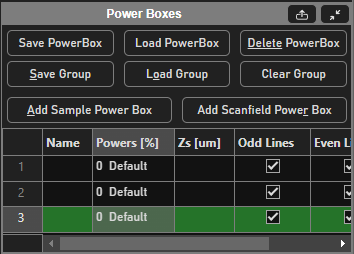
Interface for managing a group of power boxes
Power Box Table
The table gives quick access to individual power boxes’ properties.
Column |
Description |
Name |
Name of the power box |
Powers [%] |
Percentage of power for each laser within power box |
Zs [µm] |
Z depths (in microns) where power box is active |
Odd Lines |
Checkbox for if the power box should be on during odd scan lines |
Even Lines |
Checkbox for if the power box should be on during even scan lines |
Locked |
Locks the power box’s position and prevents resizing |
Selected Power Box Gui
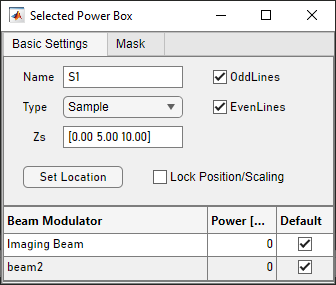
The Selected Power Boxes Gui consists of two tabs: Basic Settings and Mask
Basic Settings
Element |
Description |
Name |
Name of the selected power box(es) (will be Various if multiple selected) |
Type |
Dropdown to specify the type of power box (sample or scanfield) |
Zs |
All Zs where the power box will be active (active at all Zs if no value specified) |
OddLines |
Checkbox for if the power box should be on during odd scan lines (toggles all selected power boxes) |
EvenLines |
Checkbox for if the power box should be on during even scan lines (toggles all selected) |
Set Location |
Allows setting the location of the power box to overlay over a live or pinned image by clicking it. |
Lock Position/Scaling |
Locks the power box’s position and prevents resizing (toggles all selected) |
Beam Table
Column |
Description |
Beam Modulator |
Name of Beam Modulator configured with current Imaging System |
Power [%] |
Power from laser from either the Beam Modulator or current power box |
Default |
If Default is checked, the selected power box will use the Beam Modulator’s power |
Mask
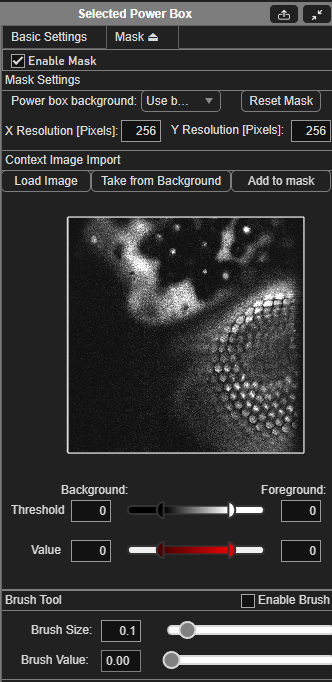
Element |
Description |
Enable Mask |
Checkbox to enable mask for all selected power boxes. All mask features disabled when unchecked |
Power box background |
Sets the power box mask background to either Use beam controls (NaN, meaning the power box does not change the power) or Zero |
Reset Mask |
Resets the power box mask values |
X Resolution (Pixels) |
Set the x resolution of the mask |
Y Resolution (Pixels) |
Set the y resolution of the mask |
Load Image |
Prompts file explorer to load desired context image (internally uses imread()) |
Take from Background |
Waits for a background selection from the viewport |
Add to Mask |
Adds the context image to the mask |
Threshold Sliders |
Black and white slider to change magnitude of black and white contrast. Black pixels get the background (set either to zero or to use the power set from the beam slider in acquisition controls). White pixels get the power set by the upper bound of the value slider Gray pixels get interpolated power between the lower and upper bound of the value slider. |
Value Sliders |
Pixels in the image that span from dark gray to white (exclusive) will have their powers mapped to the range given by the left and right-hand Value sliders |
Brush Tool
The brush tool allows for the specific painting of a mask onto a power box. Right clicking allows for erasing.
Element |
Description |
Enable Brush |
Toggles brush tool (escape to exit tool) |
Brush Size |
Normalized size of the paint brush relative to the size of the powerbox |
Brush Value |
Power fraction to assign to mask at the appropriate indices |
Usage |
Description |
Left Click |
Paints Brush Value onto the power box mask using Brush Size |
Right Click |
Erases power box values to currently set background value |